
How to Add Fade In and Fade Out to a Ringtone

@Guenter Apr 24, 2026 9805 views fade in ringtone fade out ringtone smooth ringtone ending

How to Add Fade In and Fade Out to a Ringtone

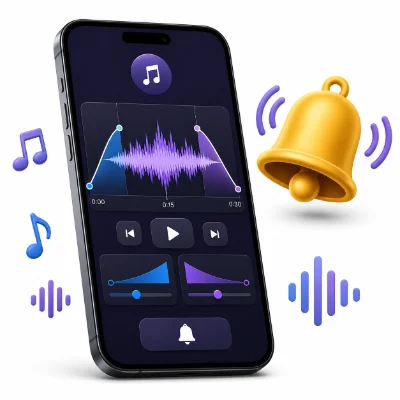
A ringtone can sound harsh if it begins suddenly or unfinished if it stops in the middle of a musical phrase. Fade in and fade out effects can make the transition smoother.

However, ringtone fades should be short and purposeful. A long fade in may make the first seconds too quiet, while an excessive fade out may remove an important part of the clip. This guide explains how to use fade effects with MP3 to Ringtone Maker.

1. What Are Fade In and Fade Out?

A fade in gradually increases the volume at the beginning. A fade out gradually lowers the volume at the end.

  • Fade in: Softens a sudden start
  • Fade out: Smooths an abrupt ending

2. When Should You Use Fade In?

Use fade in when:

  • The clip starts in the middle of a loud note
  • The first sound creates a click or harsh attack
  • The audio begins too suddenly

Do not use a long fade in for a call ringtone. The phone should become audible immediately.

3. When Should You Use Fade Out?

Use fade out when:

  • The selected section has no natural ending
  • The song stops suddenly
  • The clip ends in the middle of a sustained sound

A short fade out can make the ringtone feel complete even when the source section continues.

4. How to Add Fade In and Fade Out Online

  1. Open MP3 to Ringtone Maker
  2. Upload the audio file
  3. Select the ringtone section
  4. Preview the clip without fades
  5. Enable fade in if the start is harsh
  6. Enable fade out if the ending is abrupt
  7. Choose a short fade duration
  8. Preview the result again
  9. Export the ringtone

5. How Long Should the Fade Be?

  • 0.2 to 0.5 seconds: Good for removing a click or harsh edge
  • 0.5 to 1 second: Suitable for many music clips
  • 1 to 2 seconds: Useful for a smooth ending, but often too long for the beginning

The right length depends on the audio. Always preview the result.

6. Best Fade Settings for Different Audio Types

Music ringtone

Use a very short fade in and a slightly longer fade out if the ending has no natural stop.

Voice recording

Usually avoid fade in because it may make the first word unclear. A short fade out may work after the final phrase.

Sound effect

Many effects should start immediately. Use no fade in unless there is a click. Fade out only when the effect has a long tail.

Notification sound

Keep fades extremely short. Notifications need to be immediate and easy to recognize.

7. Common Fade Mistakes

  • Using a fade in that is too long
  • Fading out an important lyric
  • Using fades instead of selecting a better cut point
  • Making a short notification sound too soft
  • Failing to preview through a phone speaker

8. Exporting for Android and iPhone

Export MP3 for most Android phones. For iPhone ringtone preparation, use iPhone Ringtone Maker and complete the installation through a supported iPhone workflow.

9. Frequently Asked Questions

Does every ringtone need fade in and fade out?

No. If the clip already begins and ends cleanly, fades are unnecessary.

Why is my ringtone too quiet at the beginning?

The fade in is probably too long. Shorten or remove it.

Can fade out fix an abrupt ending?

Yes, but choosing a more natural end point is often better. Use fade out when the source has no clean stopping point.

Will fades reduce audio quality?

The effect itself is not usually a problem. Repeated conversion and poor export settings are more likely to affect quality.

Conclusion

Fade in and fade out can make a ringtone sound smoother, but they should be used carefully. Keep fade in short so the phone is audible immediately, and use fade out only when the ending needs help.

Upload the source to MP3 to Ringtone Maker, choose the best section, preview the clip, apply subtle fades, and export the final ringtone in the format your phone needs.



Voted up by 1961 users:
When you and other people like the post, the author will get paid. If you like to read the content here, please create your account now and start earning for free!
People also read:
  • How to Create a Custom Phone Wallpaper Online

    By @Diego Custom Phone Wallpaper
    Create a custom phone wallpaper online by choosing your device size, cropping and positioning an image, previewing the Lock and Home Screens, and downloading a high-quality background.
    3868
  • How to Set a Live Wallpaper on Android

    By @dermieg live wallpaper set
    Learn how to set a live wallpaper on Android, use a downloaded video as your Home or Lock Screen, fix common problems, and reduce battery usage.
    6218
  • How to change iphone 17 wallpaper

    By @roger iphone 17 wallpaper iphone wallpaper change iphone wallpaper
    Learn how to change your iPhone wallpaper for the Lock Screen and Home Screen, use your own photos, customize the display, and fix common wallpaper problems.

    6288
  • How to Remove Silence from the Beginning of a Ringtone

    By @Guenter remove silence from ringtone ringtone starts late trim MP3 silence
    Fix a ringtone that starts late by removing silence from the beginning. Learn how to find the first audible point, trim the file online, and export a ringtone that begins immediately.

    1166
  • How to Make a Ringtone Online Without Downloading an App

    By @goom make ringtone online ringtone maker without app online MP3 ringtone maker
    Create a custom ringtone online without installing an app. Upload an audio file, trim the best section, preview it, export the right format, and set it on iPhone or Android.
    1868
  • How to Trim a Song for a Ringtone Without Losing Quality

    By @dazzling trim song for ringtone cut audio without losing quality MP3 ringtone cutter
    Learn how to trim a song for a ringtone without making it sound thin, distorted, or noticeably lower in quality. This guide explains how to choose the best section, avoid unnecessary re-encoding, export the right format, and set the finished ringtone on i
    621
  • How to Make an MP3 Louder Online Without Distortion

    By @Guenter make MP3 louder increase MP3 volume audio volume booster online
    Learn how to make an MP3 louder online without clipping, crackling, or harsh distortion. Find the right volume boost, preview the loudest sections, choose the best export format, and create clearer audio for music, voice recordings, ringtones, notificatio
    504
  • How to Convert MP3 to M4R for an iPhone Ringtone

    By @agape35 convert MP3 to M4R iPhone ringtone maker MP3 to iPhone ringtone
    Learn how to convert MP3 to M4R for an iPhone ringtone, trim the best part of your audio, export the correct format, and add the finished ringtone to your iPhone using simple online tools.
    1059
  • How to Cut an MP3 into a Ringtone Online: Step-by-Step Guide

    By @dazzling cut MP3 into ringtone online ringtone maker trim MP3 for ringtone
    Learn how to cut an MP3 into a ringtone online, choose the best section, add smooth fades, export the right format, and set the finished ringtone on iPhone or Android.
    544
  • How to Make a Custom Notification Sound from Any Audio File

    By @Georg custom notification sound notification sound maker make alert sound
    Learn how to make a custom notification sound from a song, voice recording, sound effect, or other audio file. Choose the best 3–5 seconds, remove silence, improve the beginning and ending, export the right format, and set the finished alert on your phone
    671
  • How to Make a Ringtone Louder Without Distortion

    By @drossing Louder Ringtone Audio Volume Ringtone Editing
    Learn how to make a quiet ringtone louder without clipping or distortion by trimming silence, normalizing audio, controlling peaks and checking phone sound settings.
    596
What's Hot
Active Members