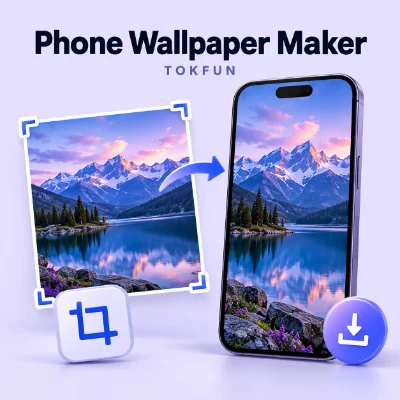
The TokFun Wallpaper Maker helps you prepare an image for your screen. Choose your phone model or enter custom dimensions, adjust the crop, preview the Lock Screen and Home Screen, and download the finished wallpaper as a JPG.
Start with the sharpest original image available. Avoid using a screenshot or a heavily compressed copy when you have access to the original photo.
Landscape photos can also work, but fitting them to a tall screen usually requires cropping the sides. For a group photo, check that everyone you want to include fits inside the wallpaper frame.
The tool supports JPG, PNG, WebP, and AVIF images up to 40 MB. Image processing takes place locally in your browser, without requiring an app or account.
Under Fit to Device, choose your phone's Brand and Model. Presets include popular iPhone, Samsung Galaxy, Google Pixel, OnePlus, and Xiaomi phones.
If your phone is not listed, use Custom Size:
Use your phone's screen resolution as a starting point. For example, if its specifications list 1080 × 2400 pixels, enter a width of 1080 and a height of 2400. This is an example, rather than a size that fits every Android phone.
A 9:16 image does not exactly match every phone screen. Many phones have taller, narrower displays, so choosing the correct proportions matters as well as selecting enough pixels.
Drag the image to reposition it inside the wallpaper frame. Use the zoom controls to adjust its scale. On a touchscreen, you can also pinch with two fingers.
If you want to start the positioning again, select Reset.
Fit keeps the image within the wallpaper frame so you can see more of the original. If the image and frame have different proportions, uncovered space may remain.
Fill covers the entire frame, but some of the original image may be cropped. Use it when you want an edge-to-edge background and have enough room around the subject.
For example, a wide photo of two people standing far apart may lose one person when you use Fill. Fit lets you preserve more of the picture, but it cannot make a wide image cover a narrow screen while keeping every edge. If neither option gives a suitable composition, try a different photo.
Select Lock Screen to check how the image sits behind the preview clock. Reposition the photo if the time covers a face or another important detail.
Switch to Home Screen to check the image behind the simulated app icons. Busy patterns and bright highlights can make icons and labels harder to read.
These previews help you plan the composition. Your phone's actual clock, notifications, widgets, and icon layout may differ, so leave a little extra space around important details.
You can also create two versions of the same image: a closer portrait for the Lock Screen and a simpler composition for the Home Screen.
The wallpaper is exported at your selected device or custom pixel dimensions. The smaller editing preview does not determine the downloaded image size.
If you create the wallpaper on a computer, transfer the original downloaded JPG to your phone using a method that preserves image quality. Avoid taking a screenshot of the editor as a substitute for downloading.
Open your phone's wallpaper settings, or open the downloaded image in your gallery and look for the option to use it as a wallpaper. Choose the Lock Screen, Home Screen, or both, depending on the options available on your device.
Check the phone's own preview before applying. Menu names vary between devices, and your phone may add extra zoom or positioning. Avoid enlarging the image again unless you want a tighter crop.
Confirm that you selected the correct phone model or entered the right custom dimensions. Then check your phone's wallpaper preview for additional zoom or movement settings.
Some launchers use a scrolling background that requires a different composition from a single-screen wallpaper. If important details are missing, return to the editor and leave more space around them.
Use a sharper original image and reduce the zoom. Exporting a small image at larger dimensions does not recover details missing from the source.
Also check that you are applying the downloaded JPG rather than a screenshot or a compressed copy received through a messaging app.
The photo and your screen have different proportions. Fit preserves more of the image, while Fill covers the frame by cropping part of it. Choose the option that best suits the photo, or use an image with more room around the subject.
Reposition the image using both display previews. Leave a calmer area around the Lock Screen clock and keep important details away from the areas occupied by your usual Home Screen widgets and icons.
Yes. TokFun Wallpaper Maker runs in your browser, so you can edit and download a wallpaper without installing an app or creating an account.
You can open JPG, PNG, WebP, and AVIF images up to 40 MB. The finished wallpaper downloads as a high-quality JPG.
No. Image decoding, cropping, previewing, and exporting happen locally on your device rather than on a TokFun processing server.
Yes. Select Custom Size and enter the width and height you need in pixels.
No. A larger output adds pixels to the saved file, but it does not restore missing detail. Start with a higher-quality source image whenever possible.
TokFun Wallpaper Maker exports still JPG wallpapers. For animated backgrounds, explore TokFun Live Wallpapers.
To create your own background, open TokFun Wallpaper Maker, select your screen size, and adjust the photo until the details you want to keep have enough room to remain visible.