How to Create a Custom Phone Wallpaper Online

@Diego Sep 01, 2026 7436 views custom phone wallpaper

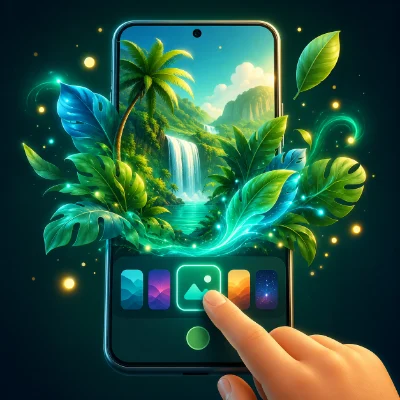
A custom phone wallpaper lets you turn a personal photo, illustration, or downloaded image into a background that fits your screen correctly. The main challenge is choosing the right dimensions and positioning the subject so it is not cropped, blurred, or hidden behind the clock and app icons.

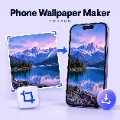
The simplest method is to use the TokFun Wallpaper Maker directly in your browser. This guide explains how to select a phone model or custom size, crop and reposition an image, preview the Lock Screen and Home Screen, download a high-quality wallpaper, and fix common sizing problems.

1. Choose the Image You Want to Use

Start with the best-quality version of your image. A sharp original gives you more freedom to crop and zoom without making the finished wallpaper look blurry.

  • Use a portrait image when possible because phone screens are vertical
  • Choose a high-resolution photo with clear details
  • Keep the main face, object, or design near the center
  • Avoid images with important details very close to the edges
  • Choose a simple background if you want app icons to remain easy to read
  • Make sure you have permission to use the image

TokFun Wallpaper Maker accepts JPG, PNG, WebP, and AVIF images up to 40 MB. The completed wallpaper is exported as a high-quality JPG for broad phone compatibility.

2. How to Upload an Image to the Wallpaper Maker

  1. Open the TokFun Wallpaper Maker
  2. Tap or click Choose Image
  3. Select a JPG, PNG, WebP, or AVIF file from your device
  4. Wait for the image to appear in the editor
  5. Check that the photo is displayed at the correct orientation

The selected image is decoded and processed locally in your browser. It is not uploaded to TokFun for server-side editing, so you can crop personal photos without creating an account.

3. Select Your Phone Brand and Model

The easiest way to choose the correct wallpaper dimensions is to use a device preset. The tool includes presets for popular iPhone, Samsung Galaxy, Google Pixel, OnePlus, and Xiaomi models.

  1. Find the Fit to Device section
  2. Open the Brand menu
  3. Select your phone manufacturer
  4. Open the Model menu
  5. Select your exact phone model when it is listed
  6. Confirm the displayed width, height, and screen ratio

Using a device preset helps the exported image match the shape and pixel dimensions of your screen. This reduces unnecessary cropping when you apply the wallpaper to your phone.

4. How to Enter a Custom Wallpaper Size

If your phone is not included in the preset list, use the Custom Size option. You will need the screen resolution of your device, written as width × height in pixels.

  1. Select Custom Size
  2. Enter the screen width in pixels
  3. Enter the screen height in pixels
  4. Check that the height is greater than the width for a vertical wallpaper
  5. Tap or click Apply size
  6. Review the updated wallpaper preview

Do not choose dimensions only because they are larger. The best size is the resolution or aspect ratio that matches your phone screen. An incorrectly shaped image may still be cropped even when it contains many pixels.

5. How to Crop and Reposition the Wallpaper

After selecting a device or custom size, adjust the image inside the wallpaper frame. The goal is to fill the screen while keeping the important part visible.

  1. Drag the image to move it left, right, up, or down
  2. Use the zoom controls or pinch with two fingers on a touchscreen
  3. Select Fit to show more of the original image
  4. Select Fill when you want the image to cover the entire screen
  5. Keep faces and important objects inside the safe area
  6. Use Reset if you want to start the positioning again

Avoid zooming more than necessary. Heavy enlargement removes visible detail and can make the finished wallpaper look soft or pixelated.

6. What Is the Difference Between Fit and Fill?

  • Fit: Displays as much of the original image as possible, but empty space may appear when the image and screen have different shapes
  • Fill: Covers the entire wallpaper area, but part of the image may be cropped from the sides or top and bottom

Use Fit when the complete picture is important. Use Fill when you prefer an edge-to-edge background and can safely crop some of the outer area. After choosing either option, drag the image to improve the final composition.

7. How to Preview the Lock Screen Wallpaper

The Lock Screen contains a clock, date, notifications, and sometimes shortcuts or widgets. A good wallpaper leaves enough clear space for those elements.

  1. Select the Lock Screen preview
  2. Check whether the clock covers a face or important object
  3. Move the image lower, higher, or to one side if needed
  4. Make sure bright areas do not reduce clock readability
  5. Leave some space near the bottom for notifications and controls

Images with the main subject slightly below the clock area often work well on the Lock Screen. Always check the final result on your actual phone because system layouts vary between models and software versions.

8. How to Preview the Home Screen Wallpaper

The Home Screen places app icons, folders, labels, and widgets over the wallpaper. A highly detailed or very bright image can make them difficult to see.

  1. Switch to the Home Screen preview
  2. Check the image behind the simulated app icon area
  3. Move the main subject away from frequently used icons
  4. Choose a calmer section of the image for the center area
  5. Reduce unnecessary zoom if the background looks crowded

You can use the same wallpaper on both screens, but separate designs often work better. A detailed image can be used on the Lock Screen while a simpler version improves icon visibility on the Home Screen.

9. How to Download the Finished Phone Wallpaper

  1. Review the selected device or custom dimensions
  2. Check the Lock Screen and Home Screen previews
  3. Make the final position and zoom adjustments
  4. Tap or click Download Wallpaper
  5. Save the JPG file to your phone or computer
  6. Open the downloaded image to confirm that it looks sharp

The preview is optimized for editing speed, but the download is rendered separately at the selected device or custom pixel dimensions.

10. How to Set the Downloaded Wallpaper on Android

  1. Open the downloaded image in your Gallery or Photos app
  2. Open the image menu
  3. Select Set as wallpaper or a similar option
  4. Choose the Home Screen, Lock Screen, or both
  5. Review the system preview
  6. Apply the wallpaper

You can also touch and hold an empty area of the Android Home Screen, open Wallpaper & style, and select the downloaded image from your photos.

11. How to Set the Downloaded Wallpaper on iPhone

  1. Save the downloaded wallpaper to the Photos app
  2. Open Settings
  3. Tap Wallpaper
  4. Tap Add New Wallpaper
  5. Select Photos and choose the downloaded image
  6. Adjust the preview only if necessary
  7. Tap Add
  8. Select Set as Wallpaper Pair or customize the Home Screen separately

If the image already matches your iPhone preset, avoid enlarging it again during setup. Additional zooming may crop the composition you prepared in the wallpaper maker.

12. What If the Wallpaper Is Cropped or Blurry?

  • Confirm that you selected the correct phone model or entered the correct screen dimensions
  • Use a higher-resolution original image
  • Reduce the zoom level inside the wallpaper maker
  • Keep important details away from the outer edges
  • Check whether your phone adds its own zoom or scrolling effect
  • Try Fit instead of Fill when too much of the image is removed
  • Recreate the wallpaper using the exact screen ratio

If you prefer a ready-made animated background instead of a still image, browse TokFun Live Wallpapers. You can also explore Black AMOLED Live Wallpapers, Anime Live Wallpapers, and Love Live Wallpapers.

13. Frequently Asked Questions

Can I create a phone wallpaper without installing an app?

Yes. TokFun Wallpaper Maker works in a web browser, so you can upload, crop, preview, and download a wallpaper without installing an app or creating an account.

What image formats can I use?

You can open JPG, PNG, WebP, and AVIF images up to 40 MB. The finished wallpaper is downloaded as a high-quality JPG.

Are my personal photos uploaded to a server?

No. The selected image is decoded, cropped, previewed, and exported locally in your browser rather than being sent to TokFun for server-side processing.

What size should a phone wallpaper be?

The best size matches your phone's screen resolution or aspect ratio. Select your brand and model from the device presets, or enter the exact width and height using Custom Size.

Can I create wallpapers for both Android and iPhone?

Yes. The device presets include popular iPhone, Samsung Galaxy, Google Pixel, OnePlus, and Xiaomi models. Custom Size can be used for other phones and displays.

Can I use the same wallpaper on the Home Screen and Lock Screen?

Yes, but check both previews first. The Lock Screen needs space for the clock and notifications, while the Home Screen needs enough visual contrast for app icons and labels.

Why does my phone crop the wallpaper again?

Some phones apply additional zoom, scrolling, or perspective effects when setting a wallpaper. Disable those effects when possible, or leave a little extra space around the important parts of your image.

Conclusion

To create a custom phone wallpaper online, choose a high-quality image, select your phone model or enter the exact screen dimensions, and reposition the photo until the important details remain visible. Preview both the Lock Screen and Home Screen, download the high-quality JPG, and apply it through your phone's wallpaper settings. The TokFun Wallpaper Maker completes the cropping and export process locally in your browser without requiring an app or account.



Voted up by 1487 users:
When you and other people like the post, the author will get paid. If you like to read the content here, please create your account now and start earning for free!

People also read:
  • How to Make a Ringtone Online Without Downloading an App

    By @goom make ringtone online ringtone maker without app online MP3 ringtone maker
    Create a custom ringtone online without installing an app. Upload an audio file, trim the best section, preview it, export the right format, and set it on iPhone or Android.
    2009
  • How to Cut an MP3 into a Ringtone Online: Step-by-Step Guide

    By @dazzling cut MP3 into ringtone online ringtone maker trim MP3 for ringtone
    Learn how to cut an MP3 into a ringtone online, choose the best section, add smooth fades, export the right format, and set the finished ringtone on iPhone or Android.
    593
  • How to Set Different Notification Sounds for Each App on Android

    By @kingajar Notification Sound Android Notifications App Sound
    Learn how to set different notification sounds for individual Android apps, add custom audio files and fix missing notification-category or Sound options on Pixel and Samsung phones.
    626
  • How Long Should a Ringtone Be? Best Length for iPhone and Android

    By @Garcia ringtone length iPhone ringtone android ringtone
    Find the best ringtone length for iPhone and Android, learn when to use 15, 20, or 30 seconds, and create a ringtone that starts quickly and sounds natural.
    751
What's Hot
Active Members