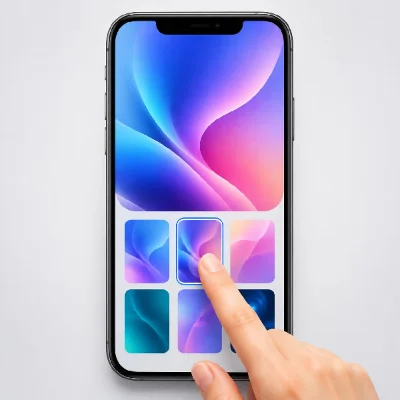
Changing your iPhone wallpaper is a simple way to personalize the Lock Screen and Home Screen. You can use one of Apple’s built-in designs, select a photo from your library, or create separate backgrounds for different parts of your phone.
This guide explains how to change iPhone wallpaper through Settings or directly from the Lock Screen. You will also learn how to customize the image, use different wallpapers, switch between saved designs, and fix common display problems.
1. How to Change iPhone Wallpaper in Settings
Open the Settings app on your iPhone
Scroll down and tap Wallpaper
Tap Add New Wallpaper
Select Photos to use your own image
Choose a photo from your library
Move or resize the image if necessary
Customize the clock, widgets, or wallpaper style
Tap Add in the upper-right corner
Choose Set as Wallpaper Pair or Customize Home Screen
Selecting Set as Wallpaper Pair applies matching versions to both screens. Choose Customize Home Screen if you want the Home Screen to use a different photo, color, gradient, or blurred version.
2. How to Change Wallpaper from the Lock Screen
On newer iOS versions, you can change the wallpaper without opening the Settings app.
Wake your iPhone without opening the Home Screen
Touch and hold an empty area of the Lock Screen
Unlock the wallpaper gallery with Face ID or your passcode if requested
Swipe left or right to view your saved Lock Screens
Tap an existing wallpaper to use it
To create another one, tap the Add button
Select a photo or built-in wallpaper style
Customize the design and tap Add
This method is useful when you have created several Lock Screens and want to switch between them quickly.
3. How to Use Your Own Photo as Wallpaper
Go to Settings > Wallpaper
Tap Add New Wallpaper
Select Photos
Open an album or browse the suggested images
Tap the photo you want to use
Pinch with two fingers to zoom in or out
Drag the photo to adjust its position
Tap Add when the preview looks correct
Choose a high-resolution vertical image for the best result. Important parts of the photo should remain away from the clock, widgets, controls, and screen edges.
4. How to Set Different Lock Screen and Home Screen Wallpapers
Your iPhone does not need to use the same image on both screens. You can use a detailed picture on the Lock Screen and a simpler background behind your Home Screen apps.
Create or select a new Lock Screen wallpaper
Tap Add
Select Customize Home Screen
Choose Color, Gradient, Photos, or another available option
Turn the blur effect on or off if available
Tap Done to save the wallpaper pair
A simple Home Screen background can make app names and icons easier to see.
5. How to Customize an iPhone Lock Screen
After selecting a wallpaper, you can customize other Lock Screen elements. The available options depend on your iPhone model, iOS version, and selected wallpaper.
Tap the clock to change its font and appearance
Add widgets for weather, battery, calendar, or other information
Try available photo styles and filters
Adjust the position and size of the image
Change supported Lock Screen controls
Link the Lock Screen to a Focus mode
Preview the full screen before saving to make sure the clock and widgets do not cover the main subject.
6. How to Use Photo Shuffle
Photo Shuffle automatically changes the Lock Screen between multiple photos. You can use a selected album, featured photos, or images chosen manually.
Open Settings > Wallpaper
Tap Add New Wallpaper
Select Photo Shuffle
Choose an album, suggested category, or manually selected photos
Select a shuffle frequency
Preview the selected images
Tap Add to save the wallpaper
Depending on your settings, the wallpaper can change when you tap the screen, lock the phone, or after a selected period.
7. How to Use a Live Photo as iPhone Wallpaper
A compatible Live Photo can display movement when the Lock Screen wakes. The effect depends on the iPhone model, iOS version, image compatibility, and system settings.
Open Settings > Wallpaper
Tap Add New Wallpaper
Select Photos
Choose a compatible Live Photo
Make sure the Live Photo effect is enabled
Adjust the image position
Tap Add to apply it
You can browse more designs on TokFun Live Wallpapers. Before downloading, check whether the item is supplied as a Live Photo, video, or still image because each format requires a different setup method.
8. How to Create a 3D Photo Wallpaper
On supported iPhone models and iOS versions, certain photos can be converted into a spatial wallpaper with a subtle 3D effect.
Go to Settings > Wallpaper
Tap Add New Wallpaper
Select Photos
Look for the spatial or 3D photo option
Choose an eligible photo
Wait for the effect to be generated
Preview the result and tap Add
Photos with a clear subject, good lighting, and visible separation between the subject and background usually produce better results.
9. How to Switch Between Saved Wallpapers
Wake your iPhone and remain on the Lock Screen
Touch and hold the Lock Screen
Unlock the wallpaper gallery if necessary
Swipe left or right through your saved designs
Tap the wallpaper you want to activate
If a wallpaper is linked to a Focus mode, switching to that wallpaper may also activate the connected Focus settings.
10. How to Delete an Old iPhone Wallpaper
Touch and hold the Lock Screen
Unlock the wallpaper gallery if requested
Swipe to the wallpaper you want to remove
Swipe upward on its preview
Tap the trash icon
Confirm that you want to delete the wallpaper
Deleting a saved Lock Screen does not normally delete the original photo from the Photos app.
11. What If the Wallpaper Does Not Fit?
Pinch the preview to resize the image
Drag the image to reposition the main subject
Use a vertical image with enough space around the subject
Crop the image before setting it as wallpaper
Try a higher-resolution version if the image looks blurry
Choose a simpler image if icons are difficult to read
A wallpaper may be slightly cropped to fill the iPhone screen. The exact result can vary between different screen sizes and models.
12. What If the iPhone Wallpaper Will Not Change?
Make sure the photo has finished downloading from iCloud
Try selecting a different image
Restart the iPhone
Check that enough storage space is available
Update iOS if a wallpaper feature is missing
Confirm that Screen Time or device management restrictions are not blocking changes
Delete the affected Lock Screen and create it again
13. Frequently Asked Questions
Can I use different wallpapers on my iPhone Lock Screen and Home Screen?
Yes. After choosing a Lock Screen wallpaper, tap Customize Home Screen and select a different photo, color, gradient, or blurred background.
Can I use a photo from my camera roll as wallpaper?
Yes. Go to Settings > Wallpaper > Add New Wallpaper > Photos, then select an image from your photo library.
Why does my iPhone zoom in on the wallpaper?
The iPhone may enlarge the image to fill the entire screen. Resize and reposition the photo in the wallpaper preview or crop it to a vertical screen ratio first.
Why is my Home Screen wallpaper blurry?
The Home Screen blur option may be enabled. Open the wallpaper customization screen, select the Home Screen preview, and turn off the blur effect.
Can my iPhone change wallpaper automatically?
Yes. Use Photo Shuffle and select when the wallpaper should change, such as when the screen is tapped, when the phone is locked, hourly, or daily.
Does deleting a wallpaper delete the photo?
No. Removing a saved wallpaper generally does not remove the original image from your Photos library.
Conclusion
To change your iPhone wallpaper, open Settings > Wallpaper, tap Add New Wallpaper, and select a photo or built-in design. You can apply a matching wallpaper pair or customize the Lock Screen and Home Screen separately.
You can also touch and hold the Lock Screen to switch between saved wallpapers, edit an existing design, or create a new one. For the best appearance, use a clear, high-resolution image and preview its position before saving.
Voted up by 3039 users:
When you and other people like the post, the author will get paid.
If you like to read the content here, please create your account now and start earning for free!
A favorite photo does not always fit your phone screen correctly. A landscape image may cut off important details, a portrait may place a face behind the clock, or a small picture may look blurry after zooming.
Create a custom phone wallpaper online by choosing your device size, cropping and positioning an image, previewing the Lock and Home Screens, and downloading a high-quality background.
By @Guenterremove silence from ringtoneringtone starts latetrim MP3 silence
Fix a ringtone that starts late by removing silence from the beginning. Learn how to find the first audible point, trim the file online, and export a ringtone that begins immediately.
By @goommake ringtone onlineringtone maker without apponline MP3 ringtone maker
Create a custom ringtone online without installing an app. Upload an audio file, trim the best section, preview it, export the right format, and set it on iPhone or Android.
By @dazzlingtrim song for ringtonecut audio without losing qualityMP3 ringtone cutter
Learn how to trim a song for a ringtone without making it sound thin, distorted, or noticeably lower in quality. This guide explains how to choose the best section, avoid unnecessary re-encoding, export the right format, and set the finished ringtone on i
By @Guentermake MP3 louderincrease MP3 volumeaudio volume booster online
Learn how to make an MP3 louder online without clipping, crackling, or harsh distortion. Find the right volume boost, preview the loudest sections, choose the best export format, and create clearer audio for music, voice recordings, ringtones, notificatio
By @agape35convert MP3 to M4RiPhone ringtone makerMP3 to iPhone ringtone
Learn how to convert MP3 to M4R for an iPhone ringtone, trim the best part of your audio, export the correct format, and add the finished ringtone to your iPhone using simple online tools.
By @dazzlingcut MP3 into ringtoneonline ringtone makertrim MP3 for ringtone
Learn how to cut an MP3 into a ringtone online, choose the best section, add smooth fades, export the right format, and set the finished ringtone on iPhone or Android.
By @Georgcustom notification soundnotification sound makermake alert sound
Learn how to make a custom notification sound from a song, voice recording, sound effect, or other audio file. Choose the best 3–5 seconds, remove silence, improve the beginning and ending, export the right format, and set the finished alert on your phone
By @drossingLouder RingtoneAudio VolumeRingtone Editing
Learn how to make a quiet ringtone louder without clipping or distortion by trimming silence, normalizing audio, controlling peaks and checking phone sound settings.