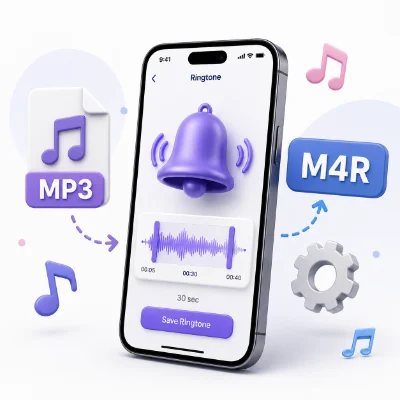
If you want to use a custom sound on your iPhone, you usually need more than just an MP3 file. iPhone ringtone workflows commonly use the M4R format, which is why many users search for an easy way to convert MP3 to M4R before adding a ringtone to their device.
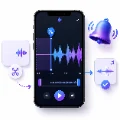
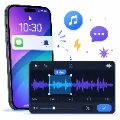
The good news is that you do not need complicated desktop software to do this. With an online tool like the MP3 to Ringtone Maker, you can upload an audio file, trim the best section, preview it, and prepare it for ringtone use. If you want a tool focused specifically on Apple ringtone workflows, the iPhone Ringtone Maker can help you create a ringtone in a format that fits iPhone use more naturally.
In this guide, you will learn how to convert MP3 to M4R, how to choose the right part of a song or recording, how to export the correct file, and how to add the finished ringtone to your iPhone.
An M4R file is a ringtone file format commonly used in iPhone ringtone workflows. It is closely related to M4A audio, but it is intended specifically for ringtone use. While an iPhone can play MP3 audio in music or file apps, an MP3 downloaded to your device does not automatically appear in the ringtone list inside Settings.
That is why many users convert MP3 to M4R when they want to turn part of a song, sound effect, or voice recording into a real iPhone ringtone.
The main point is simple: downloading an MP3 to your iPhone is not the same as installing a ringtone. To make the sound usable as a ringtone, you usually need to trim it properly and convert or export it in the correct format.
Before starting the conversion process, prepare the source audio and decide what part of the file you want to use. This makes the final ringtone sound cleaner and more practical.
Play the original MP3 before uploading it. Make sure the file is not damaged, does not begin with long silence, and contains a section that sounds clear through a phone speaker.
A full song may be too long for a practical ringtone. Most calls are answered or missed before a long track reaches its most recognizable section. A shorter ringtone starts faster and feels more polished.
For most users, the ideal ringtone length is between 20 and 30 seconds. Shorter clips can also work well if the beginning is strong and easy to recognize.
The easiest way to convert MP3 to M4R is to use an online ringtone-making workflow. Instead of only changing the file extension, you should trim the file and export it properly.
If your source file is already an MP3, start with MP3 to Ringtone Maker:
This is a good option when your main goal is to cut an MP3 into a shorter ringtone clip before preparing it for iPhone use.
If you want a workflow built specifically around iPhone ringtone creation, use iPhone Ringtone Maker:
This tool is especially useful when you already know the final result is for iPhone and want a more direct Apple-oriented process.
Changing a filename from ringtone.mp3 to ringtone.m4r does not truly convert the audio. It only changes the letters in the filename. A real conversion changes the file format itself.
That is why using an actual conversion or ringtone-making tool is important. It helps ensure the file is properly prepared and more likely to work in the next installation step.
The best ringtone section is usually the most recognizable part of the audio. It should begin clearly, sound good through a small phone speaker, and avoid unnecessary silence.
Preview the selected clip several times before exporting. A section that sounds good inside a full song may feel repetitive or awkward when used as a ringtone.
One of the most common ringtone mistakes is leaving too much silence at the beginning. Your phone may appear to ring late even when the ringtone is technically working.
Move the start point to the first clear sound so the ringtone begins immediately when a call arrives.
A polished ringtone is not only about format. The beginning, ending, and overall clarity also matter.
A short fade in can soften a harsh audio start, especially if the selected section begins in the middle of a loud sound. A short fade out can make the ending smoother if the clip would otherwise stop abruptly.
Phone speakers are small, so very deep bass or heavily layered audio may sound unclear. A clear vocal, melody, or sharp sound effect usually works better as a ringtone than a very dense musical section.
Save the finished ringtone with a short and clear name such as custom-iphone-ringtone.m4r. Avoid very long filenames or unusual symbols.
After converting the MP3 and preparing the M4R file, you still need to install it as a ringtone on your iPhone. A downloaded file does not automatically appear in the ringtone list.
GarageBand is one of the most common ways to turn a local audio file into an actual iPhone ringtone.
Depending on your setup, you may also use Finder on Mac or a supported Windows workflow to transfer the ringtone file. After the ringtone has been imported successfully, check the ringtone list in Settings.
No matter which method you use, test the finished ringtone with a real incoming call after installation.
Return to the trimming step and preview the selected section again. The start point may be too early, too late, or placed in a weak part of the audio.
Move the start marker to the first visible audio peak and remove any silent introduction before exporting.
A converted ringtone still needs to be installed correctly. Try the GarageBand export process again or repeat the import workflow with a new file name.
Use a louder section of the source audio or adjust the file carefully before exporting again. Avoid extreme amplification because it can create distortion.
If you renamed an MP3 file to M4R without true conversion, create a new ringtone file using MP3 to Ringtone Maker or iPhone Ringtone Maker and export it properly.
You can use the same audio section, but the final format and installation method may differ. Android commonly works well with MP3, while iPhone ringtone workflows commonly use M4R.
If your source audio is already MP3 and you want to trim it first, begin with MP3 to Ringtone Maker. If your main goal is to build an iPhone-ready ringtone workflow, you can move directly to iPhone Ringtone Maker.
Converting MP3 to M4R for an iPhone ringtone is not just about changing a file extension. A good ringtone requires the right section, the right length, and the right export format.
You can start by trimming your source file with MP3 to Ringtone Maker, or use iPhone Ringtone Maker for a more iPhone-focused ringtone creation process.
Once the ringtone is trimmed, exported, and installed correctly, you can set it in your iPhone ringtone list and use a custom sound that fits your style much better than the default options.