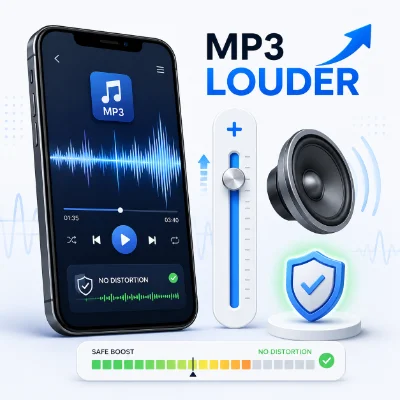
Some MP3 files sound noticeably quieter than other music, voice recordings, ringtones, or notification sounds. Even when your phone or computer volume is turned up, the file itself may still be difficult to hear.
The solution is to increase the audio file's actual volume rather than relying only on the playback-volume controls. However, boosting the level too aggressively can create clipping, crackling, and harsh distortion. With a browser-based volume booster online, you can upload an MP3, increase its level gradually, preview the result, and download a louder version without installing editing software.
An MP3 can sound quiet for several reasons. Understanding the cause helps you choose the right amount of volume boost instead of immediately using the maximum setting.
Play the same MP3 on another phone, computer, speaker, or pair of headphones. If it sounds quiet everywhere, the file itself probably needs adjustment.
If the file sounds normal on one device but quiet on another, check the device's media, ringtone, notification, or alarm volume before editing the audio.
Turning up your phone or computer changes playback volume only. It does not make the MP3 permanently louder. If you send the file to another person or use it as a ringtone, it may still sound quiet.
A volume booster raises the amplitude of the audio waveform. Both quiet and loud sections become stronger.
A moderate increase can make the file easier to hear. An excessive increase can push the loudest peaks beyond the available digital limit and create clipping.
The best result is not necessarily the loudest possible file. The goal is to increase useful loudness while preserving clarity and enough headroom for strong peaks.
A volume booster raises the entire signal. Background hiss, room noise, traffic, microphone handling noise, and other unwanted sounds may also become louder.
You can increase the file volume directly in a browser. Always listen to the original first so you have a clear reference for comparison.
Do not begin with the maximum boost. A small or medium adjustment is safer and often provides enough improvement.
Increase the level gradually, preview the result, and stop when the audio is comfortably loud and still clean.
Do not judge the file only by a quiet introduction. Play the chorus, loud voice, drum hit, or strongest waveform peak because distortion usually appears there first.
Switch between the original and edited versions. The boosted file should sound clearer and easier to hear, not simply more aggressive.
There is no single perfect boost for every MP3 because each file has different peak levels and available headroom. Use these ranges as practical starting points:
A file with low peaks may tolerate a stronger increase. A professionally mastered song may already be close to its maximum clean level and may need only a small adjustment.
The loudest part is the most likely place for clipping to appear. Test the chorus, strongest voice, drum impact, or largest waveform peaks before exporting.
Do not push every peak to the maximum. A small safety margin helps the file remain clean across different players, phones, speakers, and headphones.
Do not export the louder file, upload that copy, and boost it again several times. Repeated processing can increase distortion and reduce quality.
Return to the original MP3 and create one carefully adjusted final export.
If the original audio already sounds clipped, harsh, or crackly, increasing its volume will make the damage more obvious. Use a cleaner source when possible.
A volume increase affects the entire file. Hiss, room echo, wind, traffic, and microphone noise may become more noticeable along with the voice or music.
The displayed boost amount is a useful guide, but the final decision should be based on careful listening. Stop increasing the level when the file sounds clear and balanced.
Test the chorus or loudest musical section before exporting. Strong drums, bass, and vocals can distort first.
Professionally released music is often already mastered at a high level. A small increase may be safer than a large boost.
A quiet interview, lecture, voice memo, or spoken recording may benefit from a moderate boost. Listen for background hiss and room noise because they will also become louder.
Volume boosting is not the same as noise removal. It can make the voice louder, but it cannot automatically remove echo, traffic, or poor microphone quality.
Choose a clear and naturally strong section before increasing the level. Test the result through the phone speaker because distortion can become especially noticeable when a short ringtone repeats.
Keep the alert short and avoid painfully sharp peaks. The goal is to make the notification easy to hear without making it startling.
Use a clear sound that attracts attention without immediate harsh distortion. Check both the audio file and the phone's separate alarm-volume setting.
The best output format depends on how you plan to use the louder audio.
MP3 is a convenient choice for Android audio, voice files, ringtones, notifications, and easy sharing.
If the louder file will become an iPhone ringtone, M4R is commonly used. The file still needs to be installed through a supported ringtone workflow.
WAV creates a larger file but is useful when you plan to continue editing without another lossy conversion step.
Changing audio.mp3 to audio.wav or audio.m4r does not convert the file. Use a real export process.
Export directly to the final format whenever possible. Repeatedly converting a lossy file can gradually reduce clarity.
A file can sound clean through one playback device and harsh through another. Test the final export in the environment where it will actually be used.
Useful test devices include:
Do not judge the file only with the device volume set to maximum. Test it at a normal everyday level and compare it with another audio file.
Reduce the boost and return to the original MP3. Check whether the source already contained clipping before making another export.
Use a smaller increase or choose a cleaner source recording. A volume booster raises the entire signal, including unwanted noise.
Volume and clarity are different. Echo, noise, muffled speech, and poor microphone quality cannot be fully repaired by increasing the level.
WAV and FLAC usually create larger files than MP3 or M4A. Export MP3 when smaller size and easy compatibility are more important.
Phone speakers can emphasize different frequencies and expose distortion. Reduce the boost slightly and test the file again through the phone speaker.
A moderate and carefully previewed increase can preserve good sound quality. Very large boosts and repeated processing are more likely to cause distortion.
It can if the loudest peaks exceed the available headroom. Increase the level gradually and test the loudest section.
Start around 20% and increase in small steps. The correct amount depends on the original peak levels.
Yes. A browser-based volume booster online can upload, preview, adjust, and export the file without a desktop editor.
The source file may be quiet, the selected section may be soft, or the phone's media or ringtone volume may be low. Test the file on another device.
A volume booster increases the entire waveform, including hiss, echo, and environmental noise.
Not necessarily. A simple volume boost applies gain to the file. Normalization usually adjusts the level according to a measured peak or loudness target.
Yes. A moderate boost can make speech easier to hear, but it may also increase room noise and hiss.
MP3 is practical for most general uses. Choose M4R for an iPhone ringtone workflow and WAV when you plan to continue editing.
Use MP3 for smaller files and everyday playback. Use WAV when uncompressed audio and continued editing are more important.
Yes. Increase the source audio carefully, export it in an appropriate format, and then install it through a supported iPhone ringtone workflow.
Yes. Lowering the gain can help when an MP3, ringtone, or notification sound is uncomfortably loud.
The level is probably too high, or the original file was already damaged. Reduce the boost and create a new export from the original source.
No. Increasing or decreasing volume cannot restore audio information that was already clipped or damaged. Use a cleaner source file when possible.
Making an MP3 louder without distortion requires gradual adjustment rather than the maximum possible boost. Start with a moderate increase, preview the loudest section, and stop when the file is clearly louder but still clean.
Remember that background noise will also become louder, and repeated boosting can reduce quality. Export directly to the final format and test the result through the device where it will be used.
With the volume booster online, you can upload the original MP3, increase or reduce the level, preview the result for clipping, and download a cleaner audio file for music, voice recordings, ringtones, notifications, and alarms.