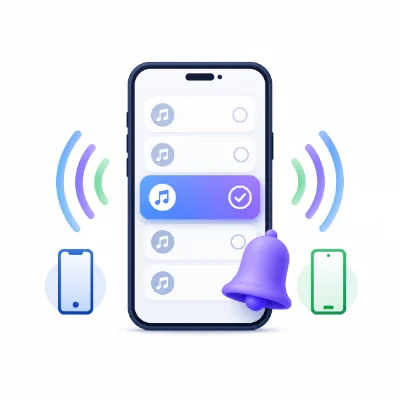
Turning an MP3 file into a custom ringtone is a simple way to personalize your phone. You can select a favorite part of a song, a sound effect, a voice recording or another audio clip and use it for incoming calls.
The main process is similar on every device: choose the best part of the MP3, trim the audio, save the finished clip and then add it to your phone. However, Android phones can usually use an MP3 file directly, while iPhone setup may require an additional export or conversion step.
This guide explains how to make a ringtone from an MP3 file on both iPhone and Android. It also covers recommended ringtone length, audio trimming, file formats, contact-specific ringtones and solutions for common problems.
Before creating the ringtone, make sure you have an MP3 file stored locally on your phone or computer. The file should be accessible through a file manager, the Files app or an audio editing tool.
You will also need a way to trim the audio. This can be an online MP3 cutter, a ringtone maker, an audio editor or a compatible phone app. The tool should allow you to select the exact start and end points of the clip and preview the result before saving it.
For Android, MP3 is normally the easiest output format. For iPhone, you may need to export the audio through GarageBand or convert it into a compatible ringtone format such as M4R, depending on the method you use.
Music from streaming services usually cannot be used directly because the audio is stored as protected app data rather than as a normal MP3 file. You need a local audio file that you have permission to use.
A ringtone does not need to include an entire song. A short clip is easier to recognize, loads quickly and avoids long introductions that may finish before you answer the call.
A length of approximately 20 to 30 seconds works well for most ringtones. The most recognizable part should begin immediately or within the first second.
If the clip is intended for one specific contact, choose a sound that makes that person easy to identify. For a default ringtone, select something clear enough to hear in different environments.
The most important step is selecting the right part of the audio. A well-trimmed MP3 will sound better and be easier to recognize than an unedited full-length song.
When selecting the start point, avoid beginning in the middle of a word or beat. A clean starting position makes the ringtone sound more professional.
If your audio editor supports it, you can add a short fade-in and fade-out. A very brief fade may prevent clicking sounds at the start or end, but a long fade-in can make the ringtone too quiet when a call first arrives.
Android phones can usually use an MP3 file directly as a ringtone. After trimming the audio, save or transfer the finished MP3 to the phone.
The exact menu names vary by phone brand and Android version. Samsung may show a plus icon, Google Pixel may use My Sounds, Xiaomi may display Choose local ringtone, and Motorola may provide an Add ringtone option.
Samsung Galaxy phones include a built-in Sound Picker that can select local MP3 files.
The selected highlights feature may automatically start the ringtone in the middle of the audio. Turning it off is useful when you have already chosen and trimmed the exact section you want.
Google Pixel phones usually add custom audio through the My Sounds section.
If the MP3 does not appear, move it into the Ringtones folder using the Files app and reopen the ringtone settings.
Making an iPhone ringtone from an MP3 requires a different process because an MP3 file normally cannot be selected directly from the standard ringtone list.
One common method is to import the MP3 into GarageBand, trim it if necessary and export it as a ringtone. Another method is to prepare the audio on a computer, convert it into a compatible ringtone file and then transfer it to the iPhone.
If the project is longer than the supported ringtone length, GarageBand may shorten it automatically. Preparing the MP3 before importing it gives you more control over the final result.
You can also create the ringtone on a computer and save it as an M4R file, which is commonly used for iPhone ringtones.
The exact transfer steps can vary depending on the computer operating system and the software used to manage the iPhone.
You do not always need to manually convert an MP3 to M4R. When you use GarageBand, the app handles the ringtone export process for you.
Manual conversion is useful when you prepare the ringtone on a computer or use a file transfer method that expects an M4R file. Android phones normally do not need this conversion and can continue using the MP3 version.
Keeping both the original MP3 and the trimmed ringtone version makes it easier to create separate files for iPhone and Android.
If you create the ringtone on a computer or another phone, you need to transfer the finished file to the device where it will be used.
After transferring the file, make sure it is actually downloaded to the phone. A file that appears only in cloud storage may not be available in the ringtone picker.
After creating the ringtone, you can use it as the default sound for every incoming call or assign it to one person.
A contact-specific ringtone is useful for family members, work calls or other important contacts because you can recognize the caller without looking at the screen.
Move the file into the Ringtones folder in internal storage. Confirm that the file has an .mp3 extension and restart the phone if Android has not scanned it yet.
An MP3 file does not normally appear directly in the iPhone ringtone list. Import it through GarageBand or prepare a compatible ringtone file on a computer.
Trim away silence or a quiet introduction. Choose a section that begins with a clear sound and avoid adding a long fade-in.
Increase the volume of the audio carefully before exporting it. Avoid excessive amplification because it can cause distortion. Also check the phone's ringtone volume rather than only the media volume.
The custom file may have been moved, deleted or stored in a temporary folder. Keep it in the Ringtones folder on Android or confirm that the ringtone was exported correctly on iPhone.
Return to the audio editor and trim the clip to approximately 20 to 30 seconds. A shorter file is easier to import and usually works better as a ringtone.
Store the file in internal storage rather than a temporary download location or removable storage. Make sure the file is not being automatically deleted by a cleanup app.
Download the file to the phone before attempting to select it. The ringtone settings may not be able to access an online-only file.
Can I use any MP3 file as a ringtone?
You can use a compatible local MP3 file, but you should only use audio you are allowed to edit and use. The file must not be protected or locked inside a streaming app.
How long should an MP3 ringtone be?
A length of approximately 20 to 30 seconds works well for most phones. The best section should begin close to the start of the file.
Can Android use MP3 files directly as ringtones?
Yes. Most Android phones can use MP3 files directly. You may need to add the file through the ringtone settings or move it into the Ringtones folder.
Do I need to convert MP3 to M4R for iPhone?
Not when using GarageBand, because the app exports the project as an iPhone ringtone. An M4R file may be needed for some computer-based transfer methods.
Can I make a ringtone without installing an app?
Android may allow you to select an existing MP3 without installing another app. However, you still need an audio editing tool if you want to trim a specific section. On iPhone, the available method depends on your iOS version and how the file is prepared.
Can I use a Spotify or Apple Music song as a ringtone?
Streaming tracks are normally protected and stored inside the app, so they cannot be selected as normal MP3 ringtone files. You need a local audio file that you have permission to use.
Where are custom ringtones stored on Android?
They are commonly stored in the Ringtones folder in internal storage. Files may also initially appear in Download or Music before you move them.
Can I use the same ringtone file on iPhone and Android?
You can use the same source audio, but the final files may be different. Android can usually use the trimmed MP3, while iPhone may need a GarageBand export or M4R version.
A good ringtone should be short, clear and easy to recognize. Choose a section that begins immediately, avoid quiet introductions and preview the audio before saving it.
For Android, export the finished clip as MP3 and keep it in the Ringtones folder. For iPhone, import the MP3 through GarageBand or prepare a compatible ringtone file using a computer.
Always test the finished ringtone with a real incoming call. This helps you confirm that the volume is high enough, the beginning is clear and the file plays correctly after being added to the phone.