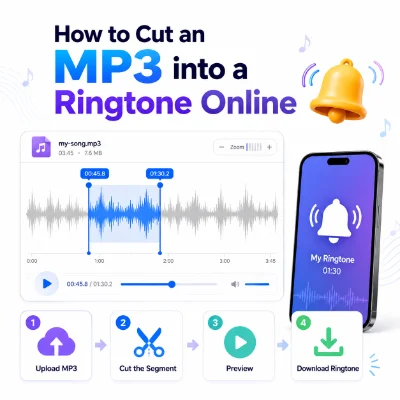
Turning an MP3 into a custom ringtone does not require complicated audio software. With an online ringtone maker, you can upload an audio file, select the exact section you want, preview the result, and download a shorter clip that is ready for your phone.
The most important part is not simply cutting the file. A good ringtone should begin quickly, sound clear through a phone speaker, and end naturally. This guide explains how to trim an MP3 online, choose the best ringtone section, use fade effects, select the correct output format, and add the finished file to an iPhone or Android phone.
Before opening an online MP3 ringtone maker, prepare the source audio and confirm that it is suitable for editing. A properly prepared file is easier to trim and less likely to cause problems during export.
Open the MP3 in a music player before uploading it. Confirm that the file plays normally, is not damaged, and does not contain unexpected silence or missing sections.
A full-length song may work on some phones, but it is usually not the best choice. Incoming calls often stop before the most recognizable section begins, especially when the song has a long introduction.
A shorter clip is easier to recognize and usually sounds better. For most calls, a ringtone between 20 and 30 seconds is enough.
An online tool can make the process faster because you do not need to install desktop software or learn a complex audio editor.
The exact buttons may vary between online tools, but the general process is similar. The goal is to upload the MP3, select the desired section, preview it, and export only that part.
A waveform shows the loud and quiet parts of the audio. Large peaks usually represent louder sections, while flatter areas may indicate silence, quiet introductions, or pauses.
Use the waveform to place the start point just before the first clear sound. This prevents the ringtone from beginning with several seconds of silence.
If the tool provides time fields, you can enter exact values instead of relying only on dragging. This is useful when you already know the best section begins at a specific point, such as 00:42 and ends at 01:08.
Always listen to the selected section from beginning to end. Check that the first sound starts clearly and the ending does not cut off a word, beat, or musical phrase.
Small adjustments of less than one second can make the finished ringtone sound much more natural.
The best ringtone section is usually the most recognizable part of the audio. It should sound clear immediately and remain easy to hear through a small phone speaker.
For music, the chorus or main hook is often a strong choice because it is recognizable from the first few seconds. For voice recordings, choose a sentence that begins clearly and does not require earlier context.
Different sound types work better at different lengths:
A longer clip is not always better. Most callers will not wait long enough for a 60-second ringtone to play completely.
Listen for natural musical or spoken boundaries. Ending at the end of a beat, lyric, sentence, or sound effect makes the ringtone feel intentional rather than unfinished.
A section that sounds good in a song may feel repetitive when used as a ringtone. Preview it several times and imagine hearing it during multiple calls throughout the day.
Fade effects gradually change the audio volume at the beginning or end of the clip. They can make an abrupt cut sound smoother, but they should be used carefully for ringtones.
A short fade in can prevent a harsh click or sudden loud start. It is especially useful when the selected section begins in the middle of a loud musical note.
However, avoid a long fade in. If the first several seconds are too quiet, you may not hear the phone immediately.
Fade out is helpful when the selected section does not have a natural ending. It gradually lowers the volume and prevents the clip from stopping suddenly.
Some ringtones should begin immediately, especially alarms, voice alerts, and short sound effects. If the clip already starts and ends cleanly, you may not need any fade effect.
The best output format depends on the phone and how you plan to install the ringtone.
MP3 is usually the safest choice for Samsung Galaxy, Google Pixel, Xiaomi, OnePlus, Motorola, Oppo, Vivo, Realme, and most other Android phones.
A standard MP3 file is easy to store, share, and select through Android's ringtone settings.
Custom iPhone ringtones commonly use the M4R format. Downloading an MP3 to the Files app does not automatically add it to the iPhone ringtone list.
After exporting the selected section, you may need to use GarageBand or a supported computer transfer method to install it as an iPhone ringtone.
Changing ringtone.mp3 to ringtone.m4r does not convert the audio. A real conversion changes the internal audio format, not only the filename.
Save the finished clip with a short, clear name such as custom-call-tone.mp3. Avoid emojis, unusual symbols, or very long filenames because some phones may not display them correctly.
If the MP3 does not appear, move it from Downloads into the internal Ringtones folder and restart the phone.
An MP3 downloaded to an iPhone cannot normally be selected directly from the ringtone menu. You need to import it through a supported workflow.
After setting the ringtone, use another phone to make a real test call. This confirms that the ringtone volume, silent mode, and call settings are working correctly.
The browser may still be processing the audio, or the file may use an unsupported codec. Wait for the upload to finish, refresh the page, or convert the file into a standard MP3.
Move the start handle to the first visible audio peak. Preview the clip and make sure the sound begins immediately.
Move the end point to a natural musical or spoken boundary. You can also apply a short fade out to make the ending smoother.
Choose a louder part of the source audio or increase the volume carefully before exporting. Avoid excessive amplification because it can create distortion.
Distortion can occur when the original file is already too loud or when the audio has been amplified too aggressively. Return to the original source and export again with a lower volume.
An MP3 in the Files app is not automatically installed as an iPhone ringtone. Import it through GarageBand or use a compatible M4R transfer method.
A ringtone between 20 and 30 seconds is suitable for most incoming calls. Shorter clips work better for notifications and message alerts.
Yes. A browser-based ringtone maker can upload, trim, preview, and export an MP3 without requiring desktop software or a mobile app.
Simple trimming can preserve good quality, although re-encoding may slightly change the audio. Use a sensible export setting and avoid repeatedly converting the same file.
The selected audio section can be the same, but the installation format may differ. Android commonly uses MP3, while iPhone ringtone workflows usually use M4R or GarageBand export.
Cutting an MP3 into a ringtone online is a quick way to create a personalized call sound without installing complicated audio software. Upload the file, select the best 20 to 30 seconds, preview the clip, and use fade effects only when they improve the beginning or ending.
Export the finished ringtone as MP3 for most Android phones or use an M4R-compatible workflow for iPhone. After downloading the file, add it through the phone's ringtone settings and test it with a real incoming call.