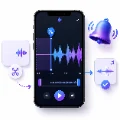
A custom notification sound can help you recognize messages, reminders, emails, and app alerts without looking at your phone. Instead of relying on a standard beep, you can create a short alert from a song, voice recording, sound effect, or another audio file.
The key is to make the sound short, clear, and easy to recognize. A notification sound is different from a phone ringtone: it should usually last only a few seconds and begin almost immediately. With an online custom notification sound maker, you can upload an audio file, find a useful short section, adjust it on a waveform, preview the result, and download a phone-friendly alert sound.
A good notification sound should get your attention quickly without becoming annoying when it plays several times during the day. It does not need a long melody or a complete spoken message. A short and distinctive sound is usually more effective.
A full song or a 20–30 second ringtone is usually too long for a normal notification. By the time the sound finishes, you may already have checked the message or received another alert.
A ringtone is designed to continue while the phone is receiving a call. A notification sound is designed to deliver one quick signal.
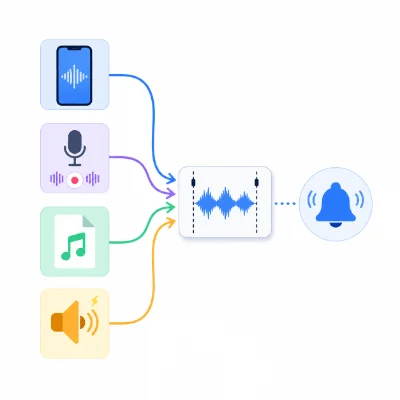
You can create a notification sound from many different source files. The best choice depends on the type of alert you want and how frequently it will play.
A song can provide a short hook, note sequence, beat, or vocal phrase. You do not need to use a complete chorus. In many cases, a single musical moment works better as an alert.
You can record a short phrase such as “New message,” “Check your email,” or “Reminder.” A personal voice alert can be useful when you want the sound to communicate a specific meaning.
Chimes, pops, clicks, bells, digital effects, and other short sounds are naturally suitable for notifications. Choose an effect that has a clear beginning and does not sound overly aggressive.
You can also record a keyboard tap, glass chime, doorbell, mechanical click, bird sound, or another real-world sound. Trim away background noise and unnecessary silence before using it.
Use your own recording, properly licensed audio, or another file you have permission to edit. Before uploading, open the file in a media player and confirm that it plays correctly from beginning to end.
Common source formats may include MP3, M4A, WAV, and FLAC. If an unusual file does not load correctly, convert it into a more common audio format before editing.
You can create the alert directly in a browser without installing a full desktop audio editor. The process involves uploading the source, selecting a short section, previewing it, and exporting the result.
The waveform is a visual representation of the audio. Flat or very small sections often indicate silence or quiet audio, while larger peaks usually represent louder sounds.
Use the waveform to find the first useful sound and remove unnecessary space before it. You can also use the waveform to locate a natural ending instead of cutting the file randomly.
For a short notification, small timing changes are important. Moving a marker by half a second can determine whether the first word is complete or whether the ending feels abrupt.
If exact time controls are available, use them to refine the clip after making the initial waveform selection.
Listen to the selected clip several times before downloading it. A sound that seems fine once may become repetitive, too loud, or irritating after repeated playback.
For most messages and app alerts, a 3–5 second section provides enough time to be recognizable while remaining compact.
The best notification clip is not always the chorus. A single bright note, transition, or short musical accent may work better.
Select a sound with a defined beginning and ending. Avoid effects that are painfully sharp, extremely loud, or uncomfortable when repeated.
Frequent alerts should usually be shorter. A slightly longer clip may be useful for an important reminder, but it should still be much shorter than a call ringtone.
If the file starts with silence, the phone may appear to play the notification late. Move the start marker close to the first visible waveform peak.
Leave a tiny amount of space before the first sound if necessary. Cutting too closely can remove the beginning of a note or spoken word.
Place the end marker after a complete beat, note, word, or phrase. If the source does not contain a natural stopping point, use a very short fade out.
A fade in gradually raises the volume at the beginning. It can remove a click or soften a harsh entrance, but a long fade in is not suitable for notifications because it makes the first seconds too quiet.
Use fade in only when the original cut sounds too sudden. Keep it short so the alert remains immediate.
A fade out can make the ending smoother when the source continues beyond the selected clip. Do not fade out an important word or the main identifying part of the sound.
Choose a naturally clear section before increasing the volume. Excessive amplification can create distortion and make background noise more noticeable.
Preview the finished sound through a phone speaker, not only through headphones. Phone speakers reproduce music, speech, and bass differently.
The best format depends on the phone, operating system, and app that will use the alert.
MP3 is usually the simplest format for Android notification sounds. It offers broad compatibility and a manageable file size.
Changing alert.wav to alert.mp3 does not convert the audio. It only changes the filename. Use a real export or conversion process when you need another format.
Save the finished alert with a clear name such as:
Avoid emojis, unusual symbols, and very long filenames. A simple name is easier for Android and file pickers to display.
Menu names can vary between Samsung Galaxy, Google Pixel, Xiaomi, OnePlus, Motorola, Oppo, Vivo, Realme, and other Android phones.
If the sound does not appear in the picker:
If the Notifications folder does not exist, create one in the main internal storage directory.
Not every app allows its sound to be changed. Some apps also use several notification categories, such as messages, calls, reminders, promotions, or downloads. Select the category that matches the alert you want to customize.
Notification sound customization is more restricted on iPhone than on Android. Some Apple apps and supported third-party apps allow users to choose a notification sound, but not every app allows an arbitrary local audio file.
Saving an MP3 or M4A file in the Files app does not automatically make it available as a notification sound for every app.
Before creating a custom sound for iPhone, check whether the target app provides a sound selection option. Some apps use only their own built-in sounds.
A custom audio file may be usable in a ringtone or text-tone workflow, but that does not mean it can be assigned freely to all third-party app notifications.
The browser may still be processing the file, or the audio may use an unsupported codec. Wait for the upload to finish, refresh the page, or convert the source to a standard format.
Move the start marker to the first meaningful waveform peak. Preview the clip and make sure the first sound is not cut off.
Keep only the most recognizable part. For most alerts, reduce the selection to approximately 3–5 seconds.
Move the end point to a natural stopping point or use a very short fade out.
Choose a louder source section or carefully increase the volume. Avoid extreme amplification, which may create distortion.
Return to the original source and export again without aggressive volume changes. The source file may already contain clipping or low-quality compression.
The app may use a separate notification category or may not support custom sounds. Open the app's notification settings and review each category.
The file may have been moved, renamed, deleted, or stored in a temporary folder. Keep a permanent copy in internal storage and select it again.
Remove silence, shorten the clip, and test it inside the target app. Some apps limit how long a notification sound can play.
Around 3–5 seconds works well for most messages and app alerts. Simple beeps can be shorter, while important reminders can be slightly longer.
Yes. Choose a short hook, beat, melody, or vocal phrase instead of using the full song.
Yes. Keep the phrase short, remove silence and breathing, and make sure the first and last words are complete.
MP3 is usually the most convenient choice because it is widely supported and creates a manageable file size.
Yes. A browser-based custom notification sound maker can upload, trim, preview, and export the audio online.
The file may be in the wrong folder, stored only in the cloud, or saved in an unsupported format. Download it locally, move it to the Notifications folder, and restart the phone.
Many Android apps support different sounds through notification categories, but availability depends on the app, phone brand, and Android version.
You can use the same audio idea, but the supported format and installation options may differ. Android generally offers more flexibility for local custom notification files.
Keep it short, avoid extreme volume, choose a clear sound, and preview it several times in a row before downloading.
An automatic clip suggestion can provide a useful starting point by identifying a short and energetic section. You should still preview and refine the result.
Use them only when needed. Keep fade in extremely short so the notification begins immediately, and use fade out to smooth an otherwise abrupt ending.
A useful custom notification sound should be short, clear, recognizable, and comfortable when repeated. For most messages and apps, begin with a 3–5 second section and remove silence from the start.
Choose a clean source file, preview the sound through a phone speaker, use subtle fades only when necessary, and export a format that works with your device.
With the custom notification sound maker, you can upload an audio file, find or select a suitable clip, refine the waveform, and download a personalized alert sound for messages, reminders, and supported apps.