detail:
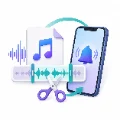
Setting a custom ringtone on an iPhone is different from simply downloading an audio file. An MP3, M4A or WAV file saved in the Files app does not automatically appear in the iPhone ringtone list. The audio must first be prepared and exported in a format that iOS recognizes as a ringtone.
Before you begin, prepare the following:
For most users, a ringtone of approximately 20 to 30 seconds is practical. A shorter clip starts quickly, is easier to edit and avoids unnecessary parts of a long recording.
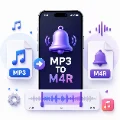
Custom iPhone ringtones generally use the M4R format. You do not need to create an M4R file manually when using GarageBand because the app exports the project as a ringtone for you.
Simply changing a filename from .mp3 to .m4r does not convert the audio. It only changes the extension. A proper conversion or GarageBand export is required.
If the audio is stored in iCloud Drive, confirm that it has been fully downloaded. A cloud icon beside the file may mean it is still stored online. Open the file and wait for it to download before importing it into GarageBand.
Some Apple Music songs cannot be imported because they are streamed, protected or not available as accessible local files. If GarageBand cannot select the song, use a compatible audio file saved in the Files app.
Before creating a new ringtone, it helps to understand where the ringtone settings are located. This is also where your custom ringtone will appear after it has been exported successfully.
The selected sound becomes the default ringtone for regular incoming calls. Custom ringtones and purchased tones usually appear near the top of the list.
Go to Settings > Sounds & Haptics and use the Ringtone and Alerts slider to increase or decrease the ringtone volume.
Media volume and ringtone volume are separate on an iPhone. Increasing the volume while playing a video may not increase the sound of incoming calls.
The Ringtone menu controls the sound used for incoming calls. Other alerts have separate sound settings, including:
Changing the default ringtone does not automatically change every notification sound. Open each alert category separately when you want to customize additional sounds.
GarageBand is the most direct way to create a custom ringtone without connecting your iPhone to a computer. The process involves importing an audio file, trimming it and exporting the project as a ringtone.
Save the sound you want to use in the Files app. Choose an easy-to-find location such as On My iPhone, Downloads or a folder in iCloud Drive.
Open the file once to confirm that it plays correctly. If it begins with several seconds of silence, remove that section later so the ringtone starts immediately.
You do not need to record anything. The Audio Recorder is only used to create a project that can accept an imported file.
If the file does not appear, make sure it is downloaded locally and stored in a compatible, unprotected audio format.
Tap the audio region in the timeline and drag the left and right edges to keep only the section you want.
For a cleaner ringtone:
Move the audio region to the beginning of the timeline so the sound starts as soon as the call arrives.
If the project is too long, GarageBand may offer to shorten it automatically. You can accept the adjustment or return to the timeline and trim the clip manually.
After exporting, GarageBand may display these options:
You can also tap Done and choose the ringtone later under Settings > Sounds & Haptics > Ringtone.
GarageBand is usually the easiest method, but you can also prepare and transfer a ringtone from a computer. This is useful when the audio is already stored on a Mac or PC or when you want to edit it with desktop software.
Trim the source audio to the section you want and convert it into a compatible M4R ringtone file.
Do not rename an MP3 file directly from filename.mp3 to filename.m4r. Use a proper audio converter so the file is encoded correctly.
On supported macOS versions, the iPhone appears in Finder after it is connected. Select the iPhone in the Finder sidebar and use the available device-management options to transfer the ringtone.
Keep the phone connected until the transfer is complete.
On Windows, the iPhone may be managed through the Apple Devices app or iTunes, depending on the software installed. Open the appropriate application, select the connected iPhone and transfer the compatible ringtone file.
If the ringtone is missing, restart the iPhone and check again. Also confirm that the file is a properly converted M4R ringtone rather than an MP3 with a renamed extension.
You can use one ringtone for most calls and assign a different sound to a family member, friend or work contact. A contact-specific ringtone overrides the default ringtone when that person calls.
The selected ringtone will now play when that saved contact calls from a recognized phone number.
If duplicate contacts exist, merge or remove them and assign the ringtone again.
If the custom ringtone does not appear or play correctly, the problem is usually related to the source file, the GarageBand export or the iPhone sound settings.
Return to the timeline and shorten the audio region. Remove silence and unnecessary sections. Manual trimming gives you more control over where the ringtone starts and ends.
Increase the Ringtone and Alerts slider. If the source file itself is quiet, adjust or normalize the audio before exporting it again. Avoid making it so loud that it becomes distorted.
An iOS update, restore or device migration may remove an imported ringtone or reset its assignment. Reopen the original GarageBand project, export the ringtone again and reassign it if necessary.
Export the project again with a new name, select the new ringtone and restart the iPhone. Make a test call to confirm that the setting remains active.
Before testing the ringtone, review this checklist:
Yes. GarageBand lets you import a compatible local audio file, trim it and export it as a ringtone directly on the iPhone.
An MP3 saved in the Files app cannot normally be selected directly from the ringtone menu. Import it into GarageBand and export it as a ringtone, or convert and transfer it as an M4R file.
A clip of approximately 20 to 30 seconds works well for most incoming calls.
After a successful export or transfer, custom ringtones appear under Settings > Sounds & Haptics > Ringtone.
Streamed or protected Apple Music tracks may not be available for ringtone creation. Use a compatible local audio file that you have permission to edit.
Yes. Open a contact, tap Edit, select Ringtone and choose the sound you want.
The export may not have completed, the source file may be unsupported or the ringtone may need to be exported again. Restart the iPhone and repeat the GarageBand export if necessary.
The easiest way to set a custom ringtone on an iPhone is to use GarageBand. Save a compatible audio file locally, import it into a project, trim the best section and export it using the Ringtone option.
After exporting, select the sound under Settings > Sounds & Haptics > Ringtone or assign it to a specific contact. If the ringtone does not work, check the source file, ringtone volume, Silent Mode and Focus settings.