A custom ringtone is one of the easiest ways to personalize an Android phone. Instead of using the default sounds included with your device, you can choose an MP3 file, a short audio clip or another compatible sound stored on your phone.
The exact steps can vary depending on your phone brand and Android version. Samsung Galaxy phones use Samsung's One UI menus, Google Pixel devices use a more standard Android interface, and brands such as Xiaomi, OnePlus and Motorola may place the ringtone controls in slightly different locations.
This guide explains how to add and set a custom ringtone on Android, including instructions for Samsung Galaxy, Google Pixel and other popular Android phones. It also covers contact-specific ringtones, dual-SIM settings and solutions for ringtone files that do not appear.
Before changing your ringtone, make sure the audio file is downloaded and stored locally on your phone. Music available only inside a streaming app usually cannot be selected as a ringtone because the app does not provide a normal audio file that Android can access.
Most Android phones work well with common audio formats such as MP3, M4A, WAV and OGG. MP3 is usually the simplest choice because it is widely supported and produces relatively small files.
For the best result, prepare a short and recognizable audio clip rather than using an entire song. A ringtone that begins with a quiet introduction may not become recognizable before the call ends.
Android treats call ringtones, notification sounds and alarm sounds as separate settings. Adding a file as your phone ringtone will not automatically change your message notifications or alarm sound.
Most Android phones provide a ringtone option inside the Sound or Sound and vibration section of the Settings app.
The names of these options may differ slightly between phone brands. When you cannot find the setting, use the search bar inside the Settings app and search for ringtone.
Samsung Galaxy phones include a built-in Sound Picker that lets you select music and other audio files stored on the device.
Samsung may display an option called Play selected highlights only. When this feature is enabled, the phone attempts to choose a highlighted section of the audio rather than starting from the beginning.
Turn this option off when you have already trimmed the ringtone and want it to play from the exact beginning of your file.
On many dual-SIM Samsung phones, you can assign a different ringtone to each number.
This makes it easier to identify whether an incoming call is for your personal or work number before checking the screen.
Google Pixel phones organize available sounds through the Phone ringtone and My Sounds menus.
If the file is not visible, open the Files app and confirm that it has been completely downloaded. Files that exist only in cloud storage may need to be downloaded to the phone before they can be selected.
You can also move the audio file into the Ringtones folder in your Pixel's internal storage. This can help Android recognize and display it in the ringtone list.
Xiaomi and Redmi devices use MIUI or HyperOS, so their menu names may look different from standard Android.
Xiaomi may also show online themes and downloadable sounds. To use your own file, look for the local ringtone or file manager option instead of selecting an online ringtone.
On recent OnePlus phones, ringtone controls are normally located in the Sound and vibration section.
Some OnePlus software versions may organize call ringtones and notification sounds under separate sections. Make sure you are changing the ringtone for incoming calls rather than the default notification tone.
Motorola phones generally follow a menu structure that is close to standard Android.
If your Motorola phone has two SIM cards, the settings page may display a separate ringtone option for each SIM.
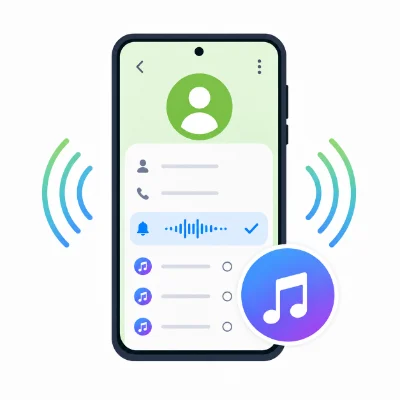
Android also lets you assign a unique ringtone to a specific person. This allows you to recognize important callers without looking at your phone.
On some Samsung phones, you may need to select the contact, tap More, choose Change ringtone/vibration and then open Ringtone.
If the ringtone option is missing, check where the contact is stored. Some phones cannot assign individual ringtones to contacts saved only on the SIM card. Moving the contact to your Google account or phone storage may make the option available.
Android commonly uses a folder named Ringtones for incoming-call sounds. Other audio categories usually have their own folders.
To move a file, open your phone's file manager, locate the audio file, select Move or Copy, and place it in the appropriate folder.
If the Ringtones folder does not exist, you can usually create a new folder named Ringtones in the main internal storage directory. Restarting the phone afterward may help Android scan the file.
If your audio file does not appear in the ringtone picker, the problem is usually related to its storage location, file format, permissions or download status.
Use a file manager to move or copy the audio file into the Ringtones folder in internal storage. Then reopen the ringtone settings.
Convert the file to MP3 if your phone does not recognize its current format. Some protected, unusual or app-specific audio formats cannot be used as normal Android ringtones.
A file shown in Google Drive, Dropbox or another cloud service may not be physically stored on the phone. Download it before opening the ringtone picker.
Long filenames and unusual symbols can sometimes create compatibility problems. Rename the file using simple letters, numbers, hyphens or underscores.
The Sound Picker, Files app or Settings app may need permission to access music and audio files. Review the app permissions if your file browser appears empty.
Restarting can force Android to scan the storage again and add newly downloaded audio to the available ringtone list.
On a dual-SIM phone, make sure you changed the ringtone for the SIM card that receives the call. Each SIM may have an independent ringtone setting.
If the correct ringtone is selected but your phone remains silent, check the sound controls before replacing the file.
You can test the setting by asking someone to call your phone. Previewing a ringtone inside Settings confirms that the audio file works, but it does not always confirm that the ring volume and call settings are configured correctly.
Can I use an MP3 file as a ringtone on Android?
Yes. MP3 is one of the most widely supported ringtone formats on Android. Download the file to your phone and select it through the ringtone settings or move it into the Ringtones folder.
Can I use a full song as my Android ringtone?
You can use a locally stored song if the phone supports its file format. However, a shorter clip usually works better because it starts quickly and uses less storage.
Why can I not use a song from Spotify or another streaming app?
Streaming services normally store music in protected app data rather than as accessible MP3 files. Android therefore cannot select those tracks directly through the standard ringtone picker.
How long should a custom ringtone be?
A clip of approximately 20 to 30 seconds is usually enough for a ringtone. The most recognizable part should begin near the start of the file.
Can I set a different ringtone for each contact?
Yes. Open the contact in your Contacts app and look for Set ringtone, Change ringtone or a similar option. The contact may need to be stored on the phone or in a Google account rather than only on the SIM card.
Can I set different ringtones for two SIM cards?
Many dual-SIM Android phones support separate ringtones for SIM 1 and SIM 2. Open the ringtone settings and select each SIM individually.
Why did my custom ringtone disappear?
The file may have been moved, renamed, deleted or stored on a removable SD card that is no longer available. Keep important ringtone files in the Ringtones folder in internal storage.
Why does my phone play the default ringtone instead of my custom sound?
This may happen when the original audio file is deleted or becomes inaccessible. Select the custom ringtone again and confirm that the file is still stored locally.
Setting a custom ringtone on Android is usually straightforward once the audio file is saved in a location your phone can access. The main settings are normally found under Settings > Sound & vibration > Phone ringtone, although menu names vary between manufacturers.
Samsung users can add a local file with the plus icon, Pixel users can look under My Sounds, and Motorola users can select Add ringtone. Xiaomi, Redmi and OnePlus phones offer similar controls through their local ringtone or on-device audio options.
For a reliable result, use a clear MP3 file, keep it in internal storage and place it in the Ringtones folder if it does not appear automatically. You can then use it as the default call sound, assign it to one SIM card or create a separate ringtone for an important contact.