Turning part of a song into a ringtone sounds simple: choose a section, cut it, and download the result. However, poor trimming or repeated conversion can make the finished file sound quieter, harsher, or less clear than the original.
The goal is not only to shorten the audio. A good ringtone should keep the strongest part of the song, begin immediately, sound clear through a phone speaker, and use an output format that matches your device. You can use MP3 to Ringtone Maker to select the exact section and prepare a ringtone without installing a full desktop audio editor.
Audio quality can change when a file is decoded and encoded again. This process is called re-encoding. A single well-made export usually sounds fine, but repeatedly converting the same file between formats can introduce noticeable changes.
Quality can also appear worse even when the technical audio quality is acceptable. Common reasons include:
The best approach is to start with the highest-quality source you have, trim it once, preview the result carefully, and export directly to the format you actually need.
The quality of the finished ringtone cannot be better than the source file. If the original MP3 is already distorted, heavily compressed, or recorded at a very low volume, trimming will not repair those problems.
Avoid editing a file that has already been downloaded, converted, re-uploaded, and converted again. Use the earliest and cleanest version available.
If the source sounds poor, choose a better copy before creating the ringtone.
Phone speakers usually reproduce clear vocals, midrange instruments, and bright melodies better than very deep bass. A section that sounds powerful on headphones may sound muddy on a phone.
Good ringtone sections often include:
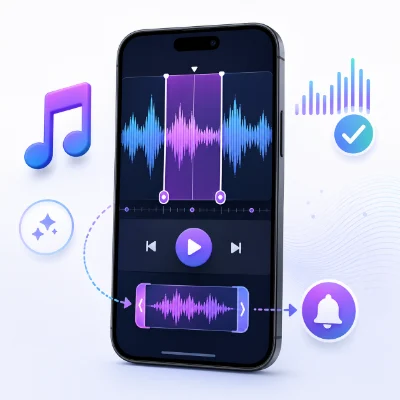
Open MP3 to Ringtone Maker and upload the source audio. The waveform helps you see where the loud and quiet sections begin and end.
Dragging the waveform is fast, but exact time fields are useful when you want precise control. For example, a clip beginning at 00:42.5 and ending at 01:07.8 may sound more natural than a rough selection.
Listen for a natural musical boundary. The start should feel intentional, and the ending should not interrupt a lyric, spoken phrase, or drum hit.
A length of approximately 20 to 30 seconds is practical for most calls. A shorter section also reduces file size and makes it easier to choose one strong musical idea.
The safest method is to minimize the number of conversions. Trim the source once and export directly to the final format.
For an iPhone-focused workflow, use iPhone Ringtone Maker to prepare the clip for iPhone ringtone use.
Do not convert MP3 to WAV, then WAV to M4A, then M4A back to MP3 unless there is a real reason. Each extra step increases the chance of unnecessary processing.
Changing song.mp3 to song.m4r does not convert the file. A true conversion changes the internal audio format.
Choose a naturally louder section before increasing the volume. If amplification is necessary, use a small adjustment and preview the result carefully.
Distortion often happens when the source is already loud or when the volume is boosted too far. Return to the original file and export again without aggressive amplification.
Move the start point slightly earlier or apply a very short fade in. The fade should be brief enough that the ringtone still begins clearly.
Move the end point to a natural musical boundary or use a short fade out. Avoid fading out an important lyric or spoken word.
If the file does not appear, move it into the internal Ringtones folder and restart the phone.
An MP3 downloaded to the Files app does not automatically appear in the ringtone list. Use iPhone Ringtone Maker to prepare the audio, then complete the ringtone installation with GarageBand or another supported iPhone ringtone workflow.
Not necessarily in a way most users can hear. A single careful trim and export can preserve very good sound. Repeated re-encoding is more likely to cause noticeable changes.
MP3 is usually the most practical and widely compatible format for Android phones.
M4R is commonly used for iPhone ringtone workflows, although the file still needs to be installed correctly before it appears in Settings.
Phone speakers reproduce sound differently from headphones and larger speakers. Choose a clear section with strong vocals or midrange detail and avoid relying on deep bass.
WAV is useful for further editing, but it creates a larger file. For everyday ringtone use, a well-exported MP3 or M4R is usually more practical.
To trim a song for a ringtone without noticeable quality loss, start with the best source file, choose a clear and recognizable section, trim it once, and export directly to the format your phone needs.
Use MP3 to Ringtone Maker for accurate waveform trimming and iPhone Ringtone Maker when you want an iPhone-focused ringtone workflow. Preview the ringtone before downloading, avoid unnecessary conversions, and test the final result with a real incoming call.