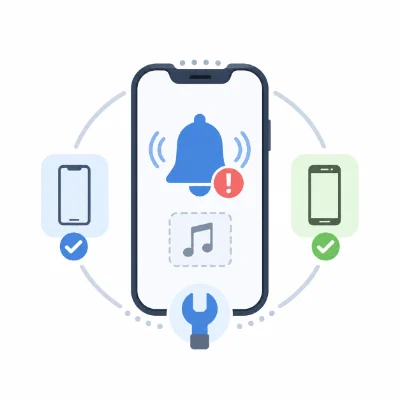
Before changing multiple phone settings, identify where the process failed. A custom ringtone must pass three basic checks: the audio file must be compatible, it must be stored or imported correctly, and the phone must be allowed to use it for incoming calls.
The most common reasons a ringtone is missing include:
It is important to understand that downloading an audio file is not the same as installing a ringtone. Android users may need to move the file into a system-recognized folder, while iPhone users generally need to export or transfer the audio through a supported ringtone workflow.
Open the file in a music player or file manager and listen from beginning to end. If it cannot be opened, stops unexpectedly or contains no sound, download or create the file again before changing the phone settings.
Use a simple filename such as custom-call-tone.mp3. Avoid emojis, unusual punctuation, very long filenames and multiple file extensions. A simple name is easier for the phone's media scanner to recognize.
Also make sure the file is stored locally. If a cloud icon appears beside the file, download it to the device before trying to add it as a ringtone.
On an iPhone, an MP3 saved in the Files app will not normally appear automatically in the ringtone list. The audio must first be turned into a ringtone and exported or transferred correctly.
If the ringtone is missing, the export or transfer process probably did not finish successfully.
GarageBand provides a direct way to create a custom ringtone on an iPhone without a computer. Import the audio into a project, trim it to the section you want and export the project as a ringtone.
After the export completes, return to Settings > Sounds & Haptics > Ringtone. The new ringtone should appear in the list. If GarageBand reports that the file is too long, allow the app to shorten it or trim the project manually before exporting again.
iPhone ringtones generally use the M4R extension. Simply renaming an MP3 file from .mp3 to .m4r does not convert it. The audio must be processed with a proper converter or exported through a supported application.
You can also prepare an M4R ringtone on a computer and transfer it using Finder on a Mac or compatible Apple device-management software on Windows. Keep the iPhone connected until the transfer is complete, then check the ringtone list again.
If the export appears successful but the ringtone is still missing, restart the iPhone. A restart can refresh the available sound list. If the ringtone disappeared after an iOS update, device restore or phone migration, locate the original audio and repeat the export process.
If the ringtone plays in the Settings preview but not during calls, the file is installed correctly and the problem is more likely related to call settings, Focus, volume or a contact-specific assignment.
Android usually offers more direct access to local audio files, but the ringtone may still be missing if the file is stored in the wrong location or has not been indexed by the system media scanner.
If the folder does not exist, create a new folder named Ringtones in the main internal storage directory. Saving the file in internal storage is generally more reliable than storing it on a removable memory card.
Many Android phones allow you to select a local file directly from the ringtone screen. Open the sound settings and look for one of these options:
The wording varies between Samsung Galaxy, Google Pixel, Xiaomi, OnePlus, Motorola, Oppo, Vivo and Realme phones. The general process is the same: open the ringtone menu, choose a local audio file and save the selection.
Open the relevant permission settings and make sure the sound picker, Settings app or file manager can access Music and audio, Files or Media. Permission names vary by Android version and phone brand.
Android uses a media database to identify audio files. If the ringtone is in the correct folder but does not appear, restart the phone to trigger a fresh scan. You can also rename the file, move it out of the Ringtones folder, restart the phone and then move it back.
If the audio plays in a music app but cannot be selected as a ringtone, convert it to a standard MP3. Avoid unusual codecs, extremely high bitrates or oversized files. A short MP3 with common encoding settings is usually the safest choice for Android compatibility.
A ringtone stored in an app-specific folder can become unavailable after the app is removed, its cache is cleared or Android restricts access to that folder. For better reliability, keep a permanent copy in the main internal Ringtones folder.
Sometimes the ringtone is visible and can be selected, but the phone remains silent during incoming calls. In this case, the problem may be caused by volume settings, Do Not Disturb, Bluetooth routing, a broken file link or a contact-specific ringtone.
Media volume and ringtone volume are separate on many phones. Playing a video loudly does not mean the call ringtone is loud. Open the sound settings and increase the dedicated Ringtone or Ring and notification volume.
Silent Mode, Focus and Do Not Disturb can prevent incoming call sounds even when the correct ringtone is selected. Review schedules, bedtime rules, location-based settings and automatic modes that may activate without obvious notification.
A connected headset, smartwatch, car system or speaker may change how call audio behaves. Turn off Bluetooth temporarily and ask someone to call the phone again.
If the ringtone keeps returning to the default sound, the original file may have been moved, renamed or deleted. Save a fresh copy in internal storage, give it a new filename and select it again.
Use a short standard MP3 on Android or a properly exported M4R ringtone on iPhone. If the test file works, the original audio is probably damaged or encoded in a way the system cannot use reliably.
A custom sound may work as the default ringtone but fail for one contact. Open the Contacts app, select the person and assign the ringtone again. Also check for duplicate records stored in different accounts.
Some Android phones allow separate ringtones for SIM 1 and SIM 2. Confirm that the sound is assigned to the SIM card receiving the call. A ringtone selected for one SIM may not be used for the other.
WhatsApp, Telegram, Messenger and other communication apps may use their own call and notification sound settings. Changing the phone's default ringtone does not always change sounds used by third-party apps.
Before using more advanced troubleshooting steps, review this checklist:
The file may still be in Downloads, stored only in the cloud or saved in an unsupported format. Android users can move it to the Ringtones folder or select it through the sound picker. iPhone users normally need to export or transfer it as an M4R ringtone.
An MP3 cannot normally be selected directly from the iPhone ringtone menu. It needs to be imported through GarageBand or converted and transferred as a compatible M4R ringtone.
For reliable detection, save call ringtones in the Ringtones folder inside internal storage. Notification sounds can be placed in the Notifications folder, and alarm sounds can be placed in the Alarms folder.
A system update may reset sound assignments, change media permissions or remove access to a ringtone stored in a temporary location. Add the original file again, store it in a permanent location and reassign it.
The custom file may have been moved, renamed, deleted or stored on unavailable removable storage. Save it in internal storage and select it again.
A ringtone of approximately 20 to 30 seconds is practical for most incoming calls. Use a section that starts quickly and does not contain a long silent introduction.
If the ringtone plays in Settings, the file is usually installed correctly. Check call volume, Silent Mode, Focus or Do Not Disturb, Bluetooth connections, contact-specific settings and dual-SIM assignments.
When a custom ringtone is not showing up, start with the audio file instead of changing random phone settings. Confirm that the file plays correctly, uses a compatible format and is stored locally. Then follow the correct import or storage method for your device.
On iPhone, the audio usually needs to be exported as a ringtone through GarageBand or transferred as a compatible M4R file. On Android, moving a standard MP3 into the Ringtones folder or selecting it through the local sound picker often solves the problem.
Once the file is compatible, stored in the correct location and assigned through the proper settings, it should remain available and play normally during incoming calls.