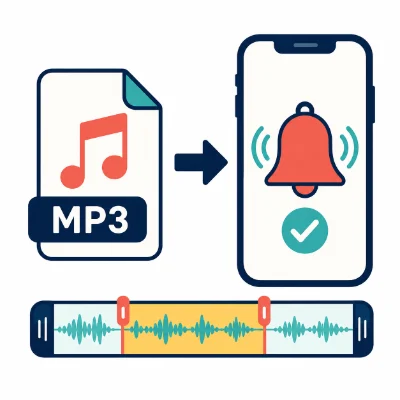
Using an MP3 as a custom ringtone on an iPhone is possible, but the process is different from simply opening an audio file and selecting it from the ringtone list. The MP3 must first be prepared and exported as an iPhone ringtone.
In iOS 26, the most reliable method remains importing the audio into GarageBand and exporting it as a ringtone. Some audio files or sharing screens may offer additional ringtone-related options, but those options can vary by file source, device and software version. GarageBand is the safest method when a direct option does not appear.
This guide explains how to prepare an MP3, create the ringtone on your iPhone and assign it as the default sound or to one contact.
Make sure the MP3 is saved locally in the Files app. A file that appears only in cloud storage may need to be downloaded before GarageBand can import it.
Streaming tracks from services such as Apple Music or Spotify are often protected and may not be available as normal MP3 files. Use an accessible local audio file rather than a streaming-only track.
A ringtone should begin with a clear, recognizable sound. Long introductions, silence and slow fade-ins can make the phone seem quiet during the first part of an incoming call.
GarageBand supports ringtone exports up to 30 seconds. If the project is longer, the app may offer to shorten it automatically. Trimming the file first gives you better control over the exact section used.
If the audio is not visible, return to the Files app and verify that it has finished downloading. Moving it to a simple local folder such as On My iPhone can also make it easier to find.
After the audio appears on the timeline, adjust it so the project contains only the ringtone section.
Starting the region at the beginning of the timeline is important. Empty space before the audio can create silence when the ringtone begins.
You can set the exported audio as the standard ringtone, use it as a text tone or assign it directly to a contact.
If you did not assign the ringtone immediately after exporting it, you can select it later.
The exported tone should appear near the top of the ringtone list. If it is missing, return to GarageBand and confirm that the export completed successfully.
The contact-specific choice overrides the default ringtone when that person calls.
Depending on the file source and software version, an audio sharing menu may offer a more direct ringtone action. When it appears, follow the prompts and confirm that the sound is added to the ringtone list.
Do not assume the option will appear for every MP3. If it is missing, the file is too long or the export fails, use the GarageBand method described above.
Try saving a copy of the file under On My iPhone, shortening the filename and importing it again.
Can an iPhone use an MP3 directly as a ringtone?
The MP3 normally needs to be imported and exported as an iPhone ringtone. GarageBand handles this process without requiring you to manually create an M4R file.
How long can an iPhone ringtone be?
GarageBand ringtone exports are limited to 30 seconds. A 20- to 30-second clip is usually ideal.
Do I have to convert MP3 to M4R first?
No. GarageBand can import MP3 audio and export the finished project as a ringtone. Manual M4R conversion is mainly useful for some computer-based workflows.
Can I use an Apple Music song?
Only audio that GarageBand can access and import can be used. Protected or streaming-only songs may not be available for ringtone creation.
Why is the ringtone quiet at the beginning?
The source audio may contain silence or a slow fade-in. Trim the beginning and move the audio region to the start of the GarageBand timeline.